Choose Android enrollment path
Prerequisites
Before you start enrolling your managed devices, you must properly configure KACE Cloud for the enrollment process. This is because KACE Cloud uses an agent to interact with managed devices. The steps you need to complete before the actual enrollment process depend on the selected agent and the way the agent interacts with KACE Cloud. You can configure KACE Cloud to have one or both of the available paths available to you, as needed. To switch from one enrollment path to another, you must unenroll and then enroll a device using a desired path.
- Android Management API (AMAPI) enrollments use a Google Android agent that interacts with KACE Cloud through the Android Management API. To follow this enrollment path, you must configure Android Management API integration (either KACE Managed or Advanced) and connect the required elements with KACE Cloud. Devices enrolled using this path use the Google Android Device Policy app. Android AMAPI enrollments support silent authentication.
- Android Enterprise Mobility Management (EMM) enrollments use the KACE Cloud Android agent. Devices enrolled using this path require the KACE Cloud Android Agent app. Android EMM enrollments also support silent authentication.
KACE Cloud allows you to indicate which agent you want to use for new Android device enrollments. You have a choice of disabling Android Management API (AMAPI) enrollments, use both AMAPI and Android EMM enrollments, or to use only AMAPI enrollments and replace Android EMM enrollments with AMAPI enrollments, as applicable.
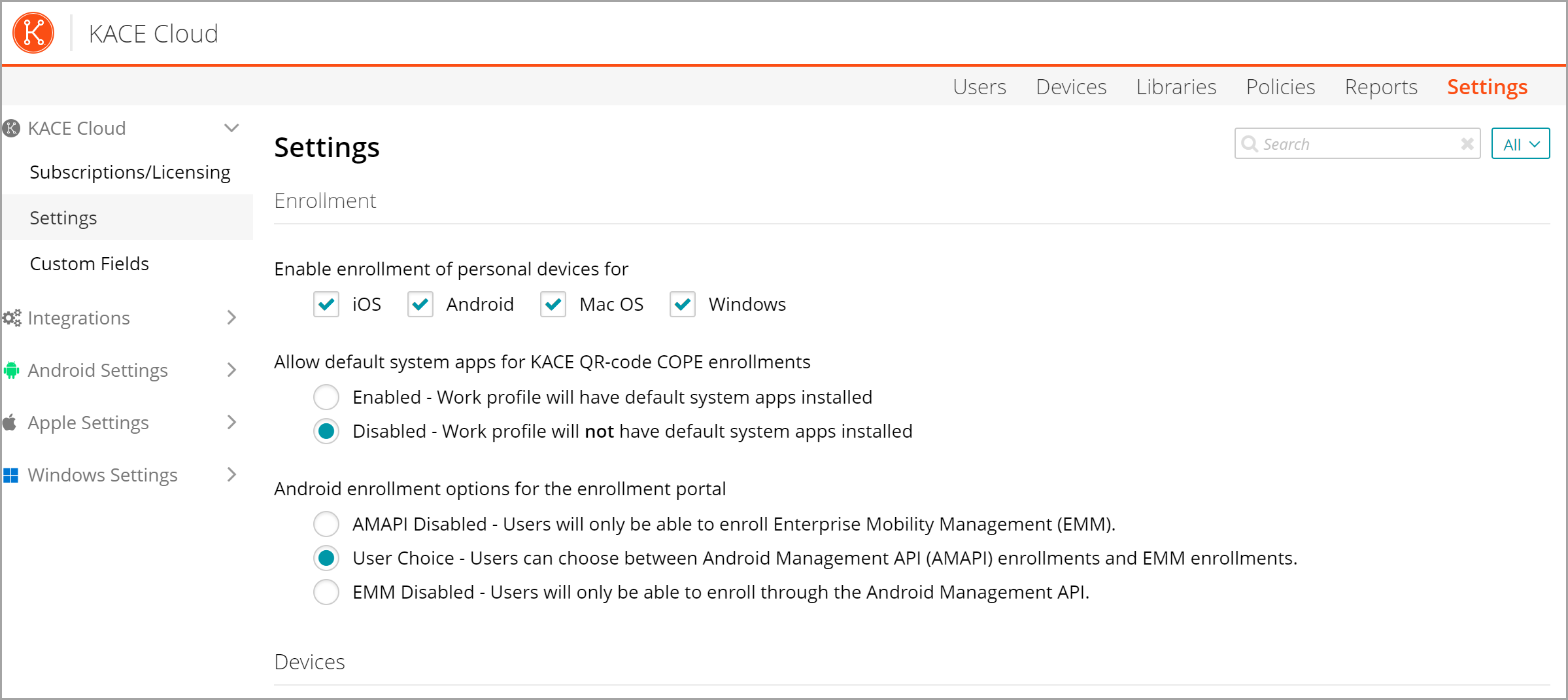
To choose Android enrollment path:
- Select the Settings tab in top navigation.
- Choose KACE Cloud > Settings.
- On the Settings page that appears, under Enable Android Management API enrollments, select one of the following options, as applicable:
- AMAPI Disabled
- User Choice
- EMM Disabled
Review the instructions on the page to better understand each option.
- When done, click Save.
Next steps
AMAPI enrollments
- Configure Android Management API Integration.
- Optional. Integrate with automated enrollment providers:
- Optional. Configure silent authentication
- Enroll your Android devices.
- If your target devices need to use certificates, install the KACE Cloud AMAPI Companion app.
EMM enrollments
- Link your Google Play organization with KACE Cloud.
- Optional. Integrate with automated enrollment providers:
- Optional. Configure silent authentication.
- Enroll your Android devices.